
Word to PDF
Turn a .docx into a PDF without sending it anywhere. Every other converter uploads your contract, CV or letter to a server — this one opens it on your own device and never transmits a byte.
Drop a Word document
or click to browse — .docx
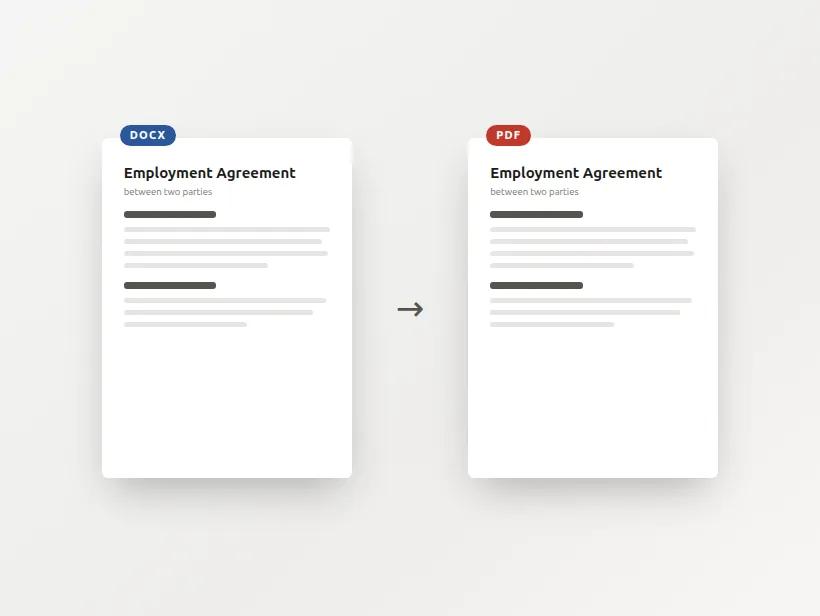
What you see below is what you get
Word documents name their fonts without embedding them, so if your computer doesn't have the original font the text is re-measured and line breaks can shift. Check the preview before saving. In the print dialog choose Save as PDF as the destination.
Why convert Word to PDF here?
Contracts, CVs, medical letters — the documents you convert are the ones you'd least want on someone else's server. This one reads yours locally.
The PDF keeps selectable, searchable text — so it stays small, copyable and readable by a screen reader.
You see the laid-out pages before you save, so nothing about the result is a surprise.
What actually happens when a .docx becomes a PDF
Fonts are the reason no two conversions match
A Word file does not contain its fonts. It contains their names. When the document says Calibri, it is making a request of whatever machine opens it, and Calibri ships with Microsoft Office rather than with operating systems — so a Mac or a Linux box, and most web browsers on them, do not have it.
The substitute is never metrically identical. Characters are a fraction wider or narrower, so the point at which a line wraps moves, and once one line moves every line after it moves too. Two pages can become three. This is not a defect in a particular converter; it is what happens whenever a document is laid out somewhere other than where it was written, and it is why the preview here is shown before the save rather than after.
If you need a PDF that is guaranteed identical to what you see in Word, the only reliable route is to export it from Word itself, on the machine that has the fonts. Everything else — this tool, LibreOffice, an online converter — is re-laying the document out and hoping the fonts line up.
Why the print dialog, and not a download button
A page cannot write a file to your disk unasked, so every in-browser converter has to choose how the PDF gets made. One option is to photograph each page and wrap the pictures in a PDF. That produces a file where the text is not text: nothing can be selected or searched, a screen reader finds nothing to read, and the size balloons because prose is being stored as pixels.
The other option is the browser's own print engine, which is a real PDF writer with real font embedding and real pagination. It produces selectable text at a fraction of the size. The price is that it opens the print dialog and you pick 'Save as PDF' as the destination. That extra click buys a file that behaves like a document instead of a scan of one.
What converts cleanly and what does not
The reliable cases are the common ones: CVs, cover letters, reports, essays, minutes — anything that is mostly headings and paragraphs, with the occasional list or simple table.
- Multi-column layouts and text boxes, which depend on precise frame positions.
- Tracked changes and comments, which are editorial state rather than content and are not rendered.
- Embedded charts and SmartArt, which are Office-specific drawing objects.
- Anything relying on a font you own but your browser does not.
Perguntas frequentes
Is this Word to PDF converter free?
Is my document uploaded to a server?
Will the PDF look exactly like it does in Word?
Why do I have to use the print dialog instead of a download button?
Can I convert an old .doc file?
What about complex documents?
Mais ferramentas grátis e privadas
Exporte aqui e continue a editar ali — a sua imagem acompanha-o, sem novo carregamento.