Add a Border
Wrap a photo in a clean border or a captioned Polaroid frame — any colour, width and corner. Free, full quality and 100% private.
Drop a photo
or click to browse — JPG, PNG or WEBP
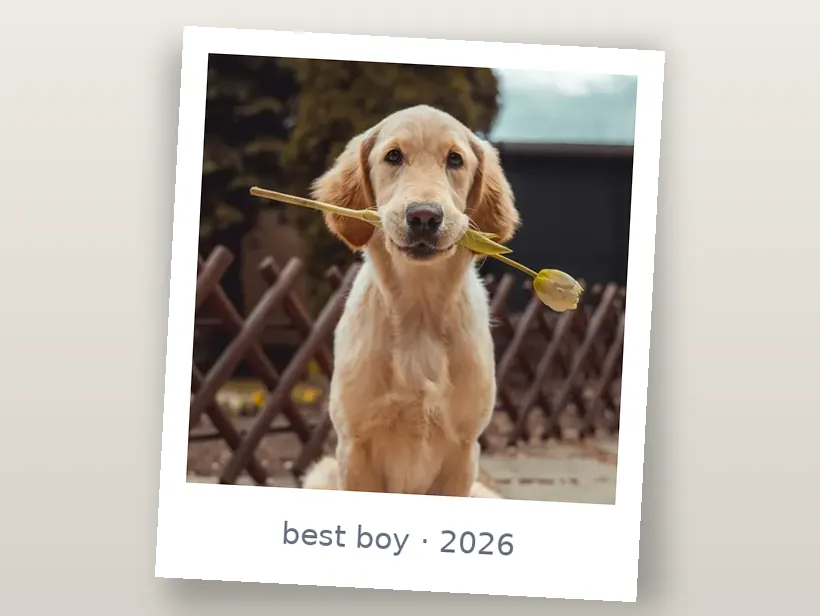 Polaroid
Frame a photo in three steps
Any JPG, PNG or WEBP — it's read straight in your browser.
A solid or gradient border with rounded corners, or a captioned Polaroid frame.
Export PNG or JPG at full quality — free, no watermark.
Borders, frames and Polaroids
What a border is for
A border does two jobs. Practically, it separates the image from whatever surrounds it — a white photo on a white page has no edge, and a border gives it one. Aesthetically, it signals deliberateness: a framed image reads as presented rather than posted.
That is why borders work well on feeds and gallery grids, where images butt against each other and against the interface, and less well on a page you already control the layout of.
Picking a width and colour
Border width should scale with the image, not be a fixed pixel value. A 20-pixel border is prominent on a 400-pixel thumbnail and invisible on a 4000-pixel photo; expressing it as a percentage keeps a set consistent.
For colour, white is the default because it reads as matting and works on most backgrounds. Black suits high-contrast and monochrome work. A colour pulled from the photograph itself ties the frame to the image, and sampling one from the palette tool is a reliable way to pick something that does not fight the content.
The Polaroid proportions
A Polaroid frame is not a uniform border — that is what makes it recognisable. The image sits high in the frame with a thin, even margin on the top and sides and a much deeper margin at the bottom, historically the space for writing.
Getting that asymmetry right is most of the effect. An even border with a caption underneath reads as a bordered photo; the deep bottom margin reads as a Polaroid. The classic image area is close to square, so a panoramic photo in a Polaroid frame never quite convinces.
Fitting a ratio without cropping
A border is also a practical way to fit an awkward image into a fixed aspect ratio without losing any of it. Padding a landscape photo with white to make it square keeps the whole frame, where cropping to square would cut the sides off.
This is worth knowing for platforms that crop to a ratio you did not shoot for. Pad rather than crop when the edges of the image matter, and crop rather than pad when the composition can take it.
Preguntas frecuentes
Is this border and frame tool free?
Is my photo uploaded?
What's the Polaroid style?
Can I get rounded corners or a gradient border?
Más herramientas gratis y privadas
Exporta aquí y sigue editando allí — tu imagen te acompaña, sin volver a subirla.