
CSV to Excel
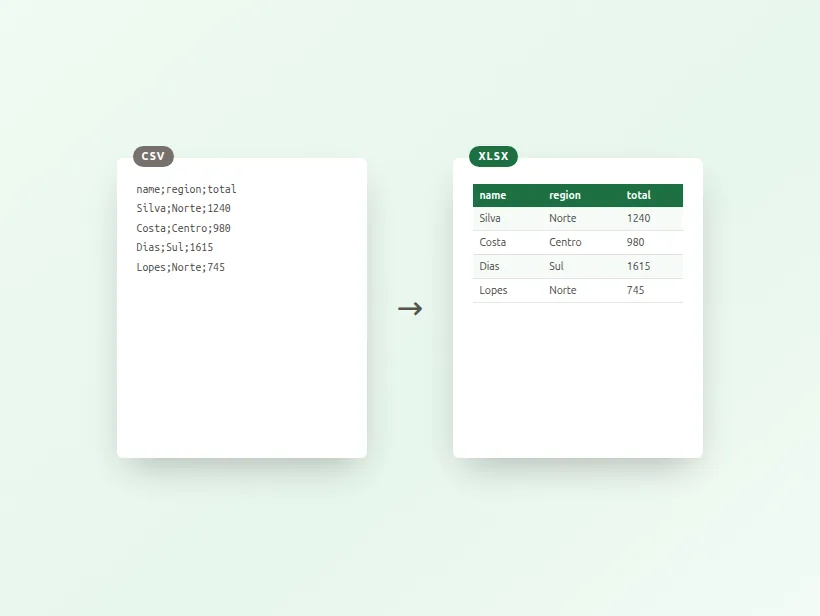
Turn a .csv into a real .xlsx workbook, or pull an Excel file back out as CSV. Spreadsheets hold payroll, customers and pricing — this converter reads yours on your own device and sends nothing anywhere.
Drop a CSV file
or click to browse — .csv or .tsv
Why convert spreadsheets here?
Salaries, customer lists, invoices, pricing. A spreadsheet is usually the most sensitive file in a company — and every other converter wants it on their server.
Semicolon-separated European exports, quoted fields, commas and line breaks inside cells — detected and parsed properly instead of collapsing into one column.
Convert Excel to CSV here, then File → Import in Sheets. Your data reaches Sheets without passing through anyone else's converter on the way.
The details that ruin spreadsheet conversions
The delimiter is not always a comma
CSV stands for comma-separated values, and in much of Europe it usually is not. Where the decimal separator is a comma — Portugal, Spain, France, Germany, Italy, Brazil — a comma cannot also separate fields, so Excel writes and expects semicolons instead. The file extension is the same either way.
A converter that assumes commas turns such a file into a single column of text: every row becomes one long cell, and the damage is obvious immediately. The delimiter is therefore detected from the content rather than assumed, which is what lets an export straight out of a Portuguese Excel install open correctly here.
Quoting, and the corruption you notice three rows later
A field containing the delimiter has to be wrapped in quotes — "Lisboa, Portugal" is one value, not two — and a field containing a quote has to escape it by doubling. A field can even contain a line break, quoted, which means a CSV row is not the same thing as a line of the file.
This is where naive conversion fails quietly. Splitting each line on the delimiter looks right on the first twenty rows and then shifts every column one place to the left at the first address containing a comma, silently, for the rest of the file. Proper quote handling is the difference between a conversion you can trust and one you have to audit.
What a CSV cannot carry
Going from Excel to CSV is a lossy step by nature, and it is better to know what is lost than to discover it.
- Formulas become their last computed value, which is what you want — the formula referenced cells that no longer exist in a flat file.
- Formatting, colours, column widths, merged cells and frozen panes have nowhere to go.
- Multiple sheets do not fit: a CSV file holds exactly one table, so each sheet has to be exported separately.
- Number and date formats collapse to text, which is why a CSV can turn a date into something Excel later reinterprets differently.
Getting a spreadsheet into Google Sheets privately
There is no button here that sends your file to Google Sheets, and that is a deliberate omission rather than a missing feature. Sheets is a cloud service; a direct "convert to Google Sheets" would have to upload your spreadsheet to Google under an OAuth grant, which is the exact thing this site exists not to do.
Sheets imports CSV natively, so the private route is two steps and no middleman: convert to CSV here, then File → Import in Sheets and pick the file. Your data goes from your machine to your own Google account without passing through anyone else's converter on the way.
Frequently asked questions
Is this CSV to Excel converter free?
Is my spreadsheet uploaded anywhere?
How do I get this into Google Sheets?
My CSV uses semicolons, not commas. Will it work?
What happens to formulas in an Excel file?
Are accented characters preserved?
What about multiple sheets in one workbook?
More free, private tools
Export here and keep editing there — your image carries over, with no re-upload.