
Upscale an Image 2× or 4×
High-quality Lanczos resampling with a gentle sharpening pass — edges stay clean instead of going soft or blocky. Instant, free and 100% private.
Drop an image
or click to browse — JPG, PNG or WEBP
Great for logos, small photos and web images headed for print
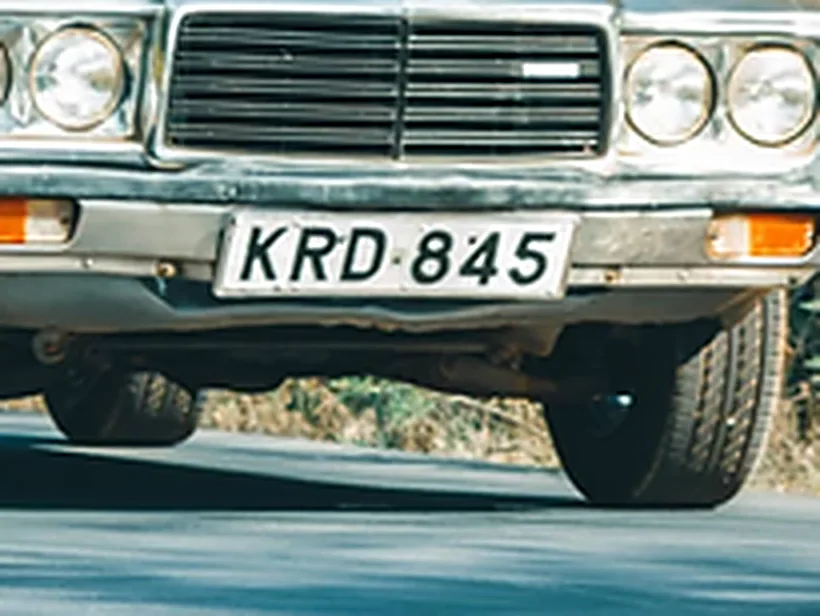
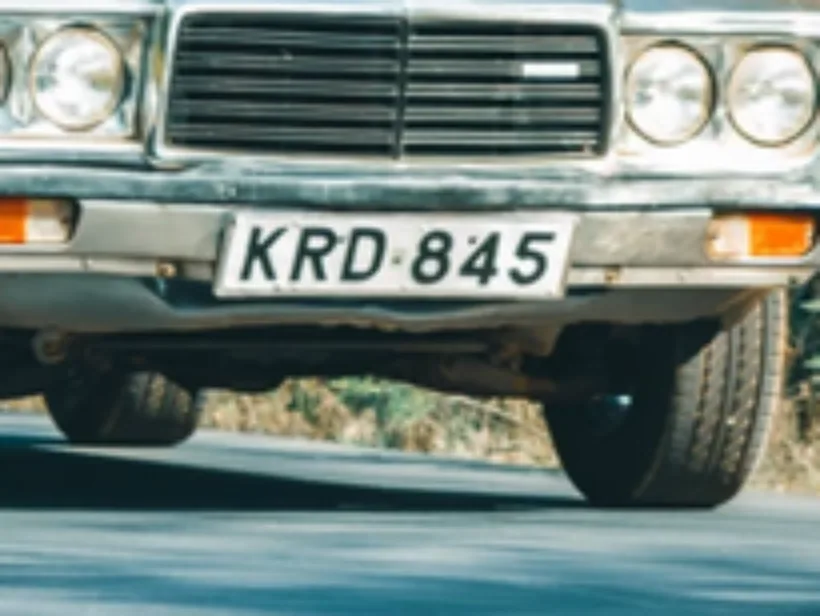
Press Ctrl V to paste
Your images never leave your device
0 images queued
The other images are upscaled with the same factor and sharpening.
Upscale an image in three steps
Any JPG, PNG or WEBP — it's read straight in your browser, never uploaded.
Lanczos resampling enlarges cleanly, and the sharpen slider brings detail forward.
Export as lossless PNG or a high-quality JPG — no watermark, no limits.
What enlarging an image can and cannot do
Resampling is interpolation, not invention
Enlarging computes new pixels from the ones around them. A good filter — Lanczos, here — weights a neighbourhood of source pixels to estimate each new one, which keeps edges clean where a naive method would produce stair-stepping or blur.
What it cannot do is add detail that was never captured. If a face occupies forty pixels in the original, no filter recovers the eyelashes, because that information does not exist in the file. Enlargement makes an image bigger and, done well, keeps it looking deliberate rather than stretched.
Why this is not an AI upscaler, on purpose
Model-based super-resolution genuinely can hallucinate plausible detail, and on the right image it is impressive. In a browser tab it is also slow enough to lock the page for tens of seconds on a large photo, and memory-hungry enough to crash a phone.
There is a second, less discussed cost: an AI upscaler invents detail, and invented detail is wrong detail. On a document, a licence plate or a face, that is a liability rather than a feature. A resampled enlargement is honest about what it knows.
Sharpening after, not before
Enlargement softens edges slightly no matter how good the filter is, so a gentle unsharp pass afterwards restores the appearance of crispness. Applied before enlargement, the same sharpening gets magnified along with everything else and turns into visible haloes.
Overdoing it is the common mistake. Sharpening amplifies noise and JPEG artefacts as readily as detail, so an already-compressed source will show its blocking pattern long before it looks sharp.
When enlargement is the wrong answer
If you need a larger image for print and have access to the original file, go back to it. A camera original or a vector source beats any enlargement of a downscaled copy, and the difference is not subtle.
- Logos and icons: find the SVG and rasterise it instead — infinitely better than any enlargement.
- Screenshots of text: retake at a higher zoom rather than enlarging.
- Heavily compressed images: compress artefacts enlarge too, and sharpening makes them worse.
- Print: 2x from a good original is usually plenty; 4x from a thumbnail will not rescue it.
Frequently asked questions
How does the upscaler enlarge my image?
Is this AI super-resolution?
What sizes can I upscale to?
Will an upscaled photo look better than the original?
Is it private and free?
More free, private tools
Export here and keep editing there — your image carries over, with no re-upload.