
Merge & split PDF
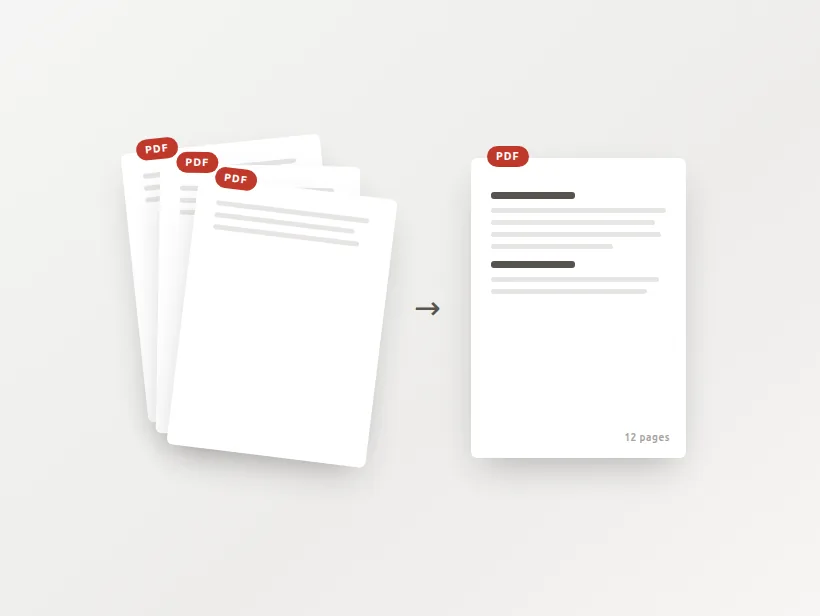
Combine a bundle into one file, or pull pages out into their own. People merge PDFs to assemble a mortgage application, a visa file, a contract with its annexes — and every other merge site takes the whole bundle onto their servers. This one doesn't.
Drop your PDFs
or click to browse — add as many as you like
Leave empty to get every page as its own PDF.
Why merge and split PDFs here?
The bundles people assemble are applications and contracts — the paperwork you'd least want sitting in a stranger's queue. Nothing here leaves your device.
Pages are copied whole, not re-encoded. Text stays selectable, images keep the exact bytes they had, and file size doesn't balloon.
No cap on how many files you merge, no daily quota, no sign-up and no watermark — because there's no server bill to pay for.
Merging and splitting without touching the pages
Why this is lossless and fast
A PDF is a tree of objects with a page list at the top. Each page points at its own content stream — the drawing commands — plus the fonts and images it needs. Merging two documents means building a new tree whose page list references the pages of both; splitting means building trees that reference a subset.
The content streams themselves are copied byte for byte and never decoded. Nothing is re-compressed, nothing is rasterised, no image is re-encoded. Text stays selectable because it is the same text objects; a scan keeps exactly the JPEG it arrived as. This is also why it is quick even on large files: the work is proportional to the number of objects, not to the number of pixels.
It is worth knowing what that implies about size. A merged file is roughly the sum of its inputs, because all the content is still there. Merging is not a way to make documents smaller, and any tool that shrinks a merged PDF noticeably has re-encoded something.
Page ranges, and why bad ones are refused
Ranges are written the way people write them: 1-3, 5, 8- gives three files, and the open-ended 8- means page eight to the end. Each range becomes its own document, so you get one file per range rather than one file with the pages you chose.
A range that runs past the end of the document is rejected rather than quietly trimmed. Silently clamping 1-99 to 1-20 would hand you a file that looks complete and is missing everything you asked for beyond page twenty — a mistake you would find much later, when the submission was already sent.
Encrypted files
A password-protected PDF is refused when you add it, and says so. That is deliberate: the alternative is discovering the problem partway through a merge, with an output file that is missing one input. Open it in a PDF reader, remove the protection, and add it again.
Frequently asked questions
Is merging and splitting PDFs free here?
Are my PDFs uploaded to a server?
Does merging reduce quality or make the file huge?
How do I choose which pages to split out?
Can I reorder the files before merging?
Can it open password-protected PDFs?
More free, private tools
Export here and keep editing there — your image carries over, with no re-upload.