
Video Converter
Trim a clip, speed it up or slow it down, mute it, and export MP4 or WebM — free, no watermark and 100% private. Your video never leaves your device.
Drop your video
or click to browse — MP4, WebM or MOV
Your browser can’t record video. Try a recent Chrome, Edge or Safari to use this tool.
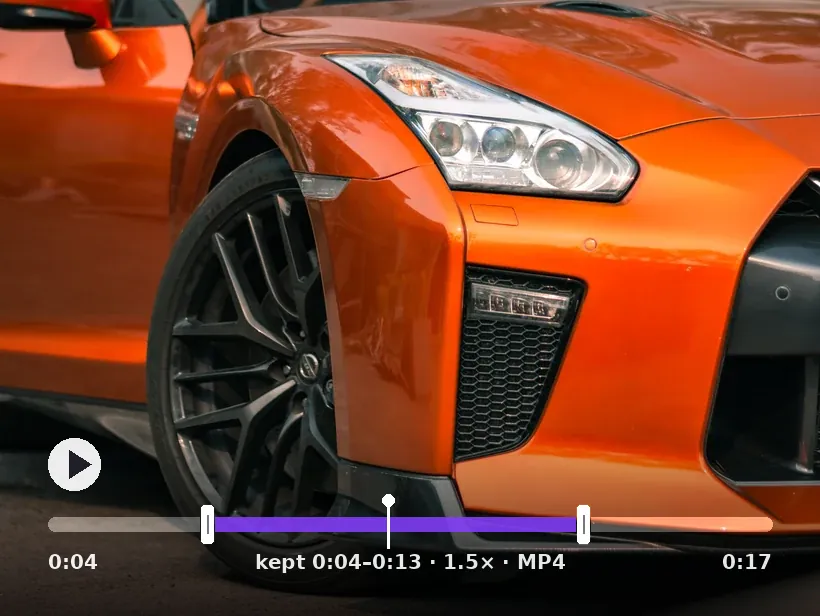 trim · speed · MP4
Trim, set the speed, then convert
Result
Press Ctrl V to paste
Your images never leave your device
Convert a video in three steps
Pick an MP4, WebM or MOV. It's read straight in your browser — nothing is uploaded.
Set the in and out points, change the speed, remove the audio and pick MP4 or WebM.
The video is re-encoded on your own device — preview it, then save. No watermark, no sign-up.
Conversion runs in real time in your browser, so a long clip takes a little while — and MP4 output needs a recent browser (Chrome, Edge or Safari); older ones fall back to WebM.
Trimming and converting video in a browser tab
Why MP4 is the format to land on
MP4 carrying H.264 video is the closest thing to a universal video format. It plays on phones, desktops, televisions, in every browser and in every editor, and hardware decoding for it exists on essentially everything.
Newer codecs compress better, and that matters when you are serving millions of views. For a clip you need someone else to be able to open, compatibility is worth more than the bytes.
What trimming does and does not re-encode
Video is stored as occasional complete keyframes with dependent frames between them, so a cut that does not land on a keyframe requires re-encoding the surrounding section to produce a valid file.
That is why a trimmed clip can be slightly softer than its source even though nothing else changed, and why trimming is slower than the file size suggests. Cutting from an original rather than from an already-trimmed export keeps the damage to one generation.
Speed changes and audio
Changing playback speed rewrites timing rather than pixels, so the video itself does not degrade. Audio is the awkward part: raising speed raises pitch unless the track is resampled, which is why a sped-up clip can sound comical.
For a silent demonstration this is moot and dropping the audio track entirely is usually the right call — it removes a surprising share of the file size and avoids autoplay restrictions on the web.
Working within a browser's limits
Everything here runs in the page, which means it runs in the tab's memory. Long or high-resolution sources are the practical ceiling.
- Short clips convert comfortably; a feature-length file is the wrong job for a browser tab.
- Keep the tab in the foreground — background tabs are throttled and the work stalls.
- Trim first, then convert, so the encode processes only the part you are keeping.
- Nothing is uploaded, which is also why your machine does all the work and can take a while.
Frequently asked questions
Is this video converter free?
Is my video uploaded to a server?
Can I convert MOV to MP4?
Can I speed up or slow down the video?
How can I make the file smaller?
Why does converting take about as long as the video?
More free, private tools
Export here and keep editing there — your image carries over, with no re-upload.