
Extract text from any image
Screenshots, photographed documents, whiteboards — on-device OCR turns them into editable text without the image ever leaving your browser.
Drop an image with text
or click to browse, or paste a screenshot — JPG, PNG or WEBP
The OCR engine loads once and is cached — screenshots never leave your device
Press Ctrl V to paste
Your images never leave your device
Retyping text from a screenshot is busywork, but most OCR sites make you upload the image to their servers — and screenshots are exactly the kind of file you don't want uploaded: conversations, invoices, credentials, contracts. This tool runs the OCR engine on your own device instead.
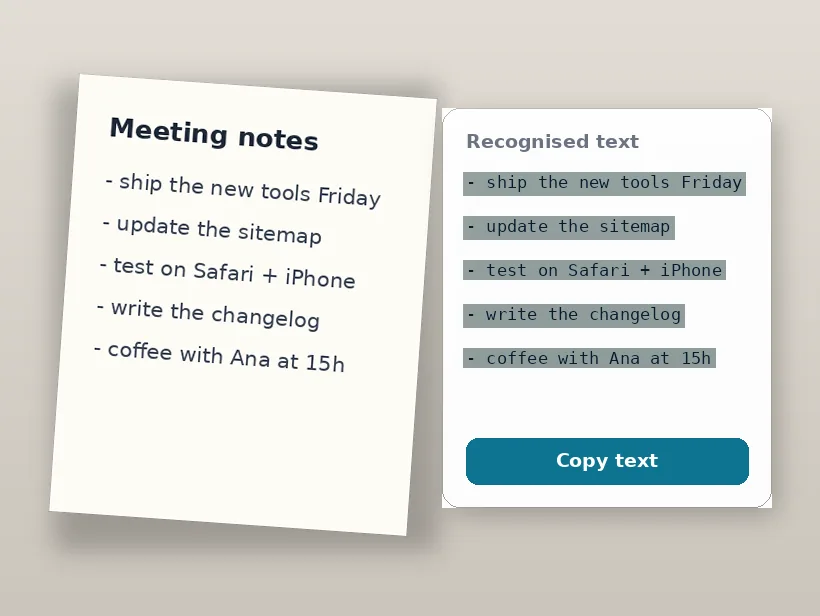
Drop in the image (or paste a screenshot straight from the clipboard), let the recogniser read it, then fix anything it got wrong in the editable box and copy the result. English, Portuguese, Spanish, French and German are supported.
Why use it
Editable result
The recognised text lands in a text box you can correct before copying — OCR is never 100%, so the last metre matters.
Five languages
English, Portuguese, Spanish, French and German packs, downloaded once and cached.
Screenshots stay private
The Tesseract engine runs in your browser via WebAssembly — nothing is uploaded.
Tools that run on your device
All free, all private — nothing here uploads your images.
Related guides
Pulling text out of a screenshot in practice
Capture at the size you will recognise
The single biggest determinant of accuracy is how many pixels tall the letters are, and a screenshot is the one input where you fully control that. Zoom the page or application before capturing rather than enlarging the image afterwards.
Enlarging a small screenshot cannot add the detail that distinguishes similar characters, so the recognised text degrades in exactly the places that matter — digits, punctuation and short words.
Crop to the text and nothing else
Before characters are identified, the page is analysed for structure: blocks, columns, reading order. Interface furniture around your text — toolbars, sidebars, tab strips — is analysed too, and can produce output interleaved in an order nobody wanted.
Cropping tightly to the passage removes that ambiguity and usually fixes 'the words are right but jumbled' without touching any other setting.
Interfaces that are hard to read
Modern interface design works against recognition in two specific ways. Low-contrast grey text on a slightly lighter grey thresholds unpredictably, and text placed over photographs or gradients has no consistent background to separate from.
Dark mode is worth mentioning: light text on a dark background is handled by most engines, but a screenshot mixing dark panels and light ones can threshold inconsistently across the image. Capturing in light mode is a surprisingly effective fix.
Expect to proofread the ambiguous characters
Recognition resolves uncertain shapes using a model of the language, which is why errors cluster where that model has no help to offer.
- Digits and letters that share shapes: 0/O, 1/l/I, 5/S, 8/B.
- Serial numbers, licence keys and codes — no language model can validate them.
- Line breaks, which are guessed from spacing rather than read.
- Accented characters when the language is set wrongly.
Frequently asked questions
How accurate is the text recognition?
Is my screenshot uploaded for the OCR?
What languages can it read?
Can I extract text from a PDF?
Try it — your images never leave your device
Free, unlimited, and completely private.
Extract text now